

Why Replicate Harbor to ACR?
Harbor is a great front door for container images: it scans, signs, and enforces policy before anything ships. But once images pass those checks, many teams still need a copy of them in Azure Container Registry — to feed an AKS cluster in a region or subscription that cannot reach Harbor directly, to give Azure-native services (App Service, Container Apps, Azure DevOps/GitHub Actions release pipelines) a registry they can pull from without VNet peering into the Harbor cluster, or simply to keep a geographically redundant copy of production images for disaster recovery.
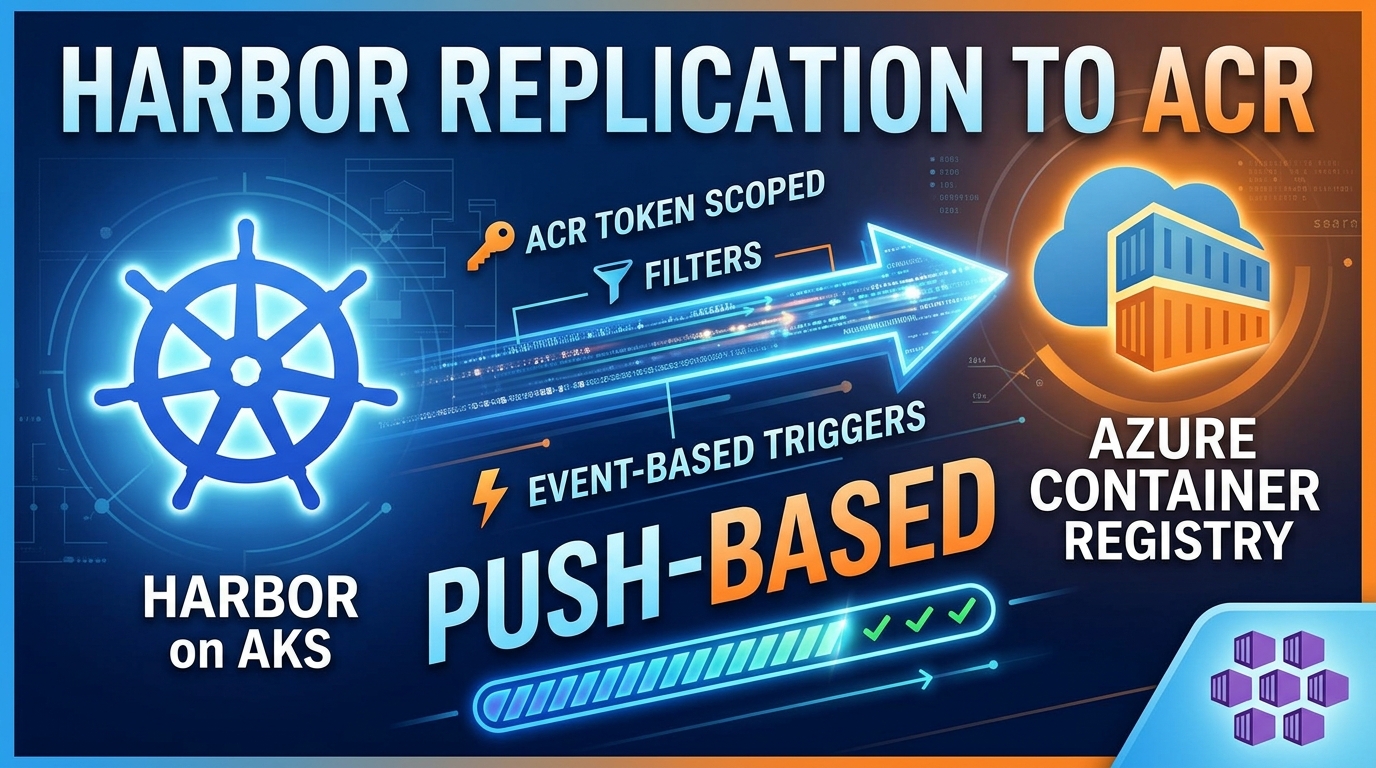
Harbor’s built-in replication feature covers exactly this: it copies images (and other OCI artifacts) between Harbor and a long list of non-Harbor registries, and Azure Container Registry is one of the natively supported providers — no custom scripts or docker pull/docker push loops required.
This post assumes Harbor is already running on AKS — see Installing Harbor Container Registry on AKS if it is not — and walks through configuring one-way, push-based replication from a Harbor project into an ACR instance.
What We Are Building
flowchart LR
    subgraph AKS["AKS Cluster"]
        Dev["CI pipeline / developer"] -->|docker push| HarborCore["Harbor<br/>(harbor-core)"]
        HarborCore --> Jobservice["jobservice<br/>replication worker"]
    end

    Jobservice -->|"push (HTTPS, token username/password)"| ACR[("Azure Container Registry")]
    ACR --> AKS2["Downstream AKS cluster<br/>/ App Service / ACA"]

    Token["ACR token + scope map<br/>scoped to specific repositories"] -.->|credentials stored in<br/>Harbor replication endpoint| Jobservice
The end state:
- A Harbor replication endpoint pointing at the target ACR, authenticated with an ACR token whose scope map grants access to only the repositories Harbor needs to push to — not the registry’s admin account.
- A push-based replication rule scoped to a specific Harbor project (and optionally a tag/name filter), so only the images you intend to mirror leave the cluster.
- A trigger mode appropriate to the use case: event-based for a live mirror, scheduled for a periodic sync, or manual for a one-off promotion.
Prerequisites
- Harbor already running on AKS with system administrator access to its UI (or API).
- An Azure Container Registry instance to replicate into — Step 1 below includes the command to create one if you don’t already have it.
- The Azure CLI logged in with permission to manage the target ACR (
az acr create,az acr scope-map, andaz acr tokenrequire at leastContributoron the resource group, orOwner/Contributoron the registry itself). - Network access from the AKS node pool running Harbor’s
jobserviceto<registry-name>.azurecr.ioon port 443 — see Networking Considerations below if AKS egress is locked down.
Step 1: Create a Repository-Scoped ACR Token
Microsoft’s own guidance for using Harbor with ACR is explicit: the Azure Container Registry adapter should authenticate with the username and password of an ACR token, not the registry’s admin account. A scope map groups a set of repository-level permissions (content/read, content/write, metadata/read, metadata/write); a token is the credential that carries those permissions, and its password can be regenerated or revoked independently of the registry’s admin credentials.
If you don’t already have a resource group or target registry, create them first (Premium is required for the ACR if you plan to lock it down with private endpoints or network rules later, but Standard is enough to follow along):
ACR_NAME="myacr"
ACR_RESOURCE_GROUP="rg-registry"
LOCATION="eastus2"

if ! az group show --name "$ACR_RESOURCE_GROUP" &>/dev/null; then
  az group create \
    --name "$ACR_RESOURCE_GROUP" \
    --location "$LOCATION"
fi

if ! az acr show --name "$ACR_NAME" --resource-group "$ACR_RESOURCE_GROUP" &>/dev/null; then
  az acr create \
    --name "$ACR_NAME" \
    --resource-group "$ACR_RESOURCE_GROUP" \
    --location "$LOCATION" \
    --sku Standard
fi
Then create a scope map limited to the repositories Harbor will replicate into, and a token bound to it:
ACR_NAME="myacr"
ACR_RESOURCE_GROUP="rg-registry"
SCOPE_MAP_NAME="harbor-replication"
TOKEN_NAME="harbor"
REPOSITORIES=("production/myapp" "production/otherapp")

az acr scope-map create \
  --name "$SCOPE_MAP_NAME" \
  --registry "$ACR_NAME" \
  --resource-group "$ACR_RESOURCE_GROUP" \
  --description "Scope map for Harbor replication"

for repo in "${REPOSITORIES[@]}"; do
  az acr scope-map update \
    --name "$SCOPE_MAP_NAME" \
    --registry "$ACR_NAME" \
    --resource-group "$ACR_RESOURCE_GROUP" \
    --add-repository "$repo" content/read content/write metadata/read metadata/write
done

az acr token create \
  --name "$TOKEN_NAME" \
  --registry "$ACR_NAME" \
  --resource-group "$ACR_RESOURCE_GROUP" \
  --scope-map "$SCOPE_MAP_NAME" \
  --query "credentials.passwords[0].value" \
  --output tsv
The scope map ends up scoped to exactly the repositories you listed, nothing else:
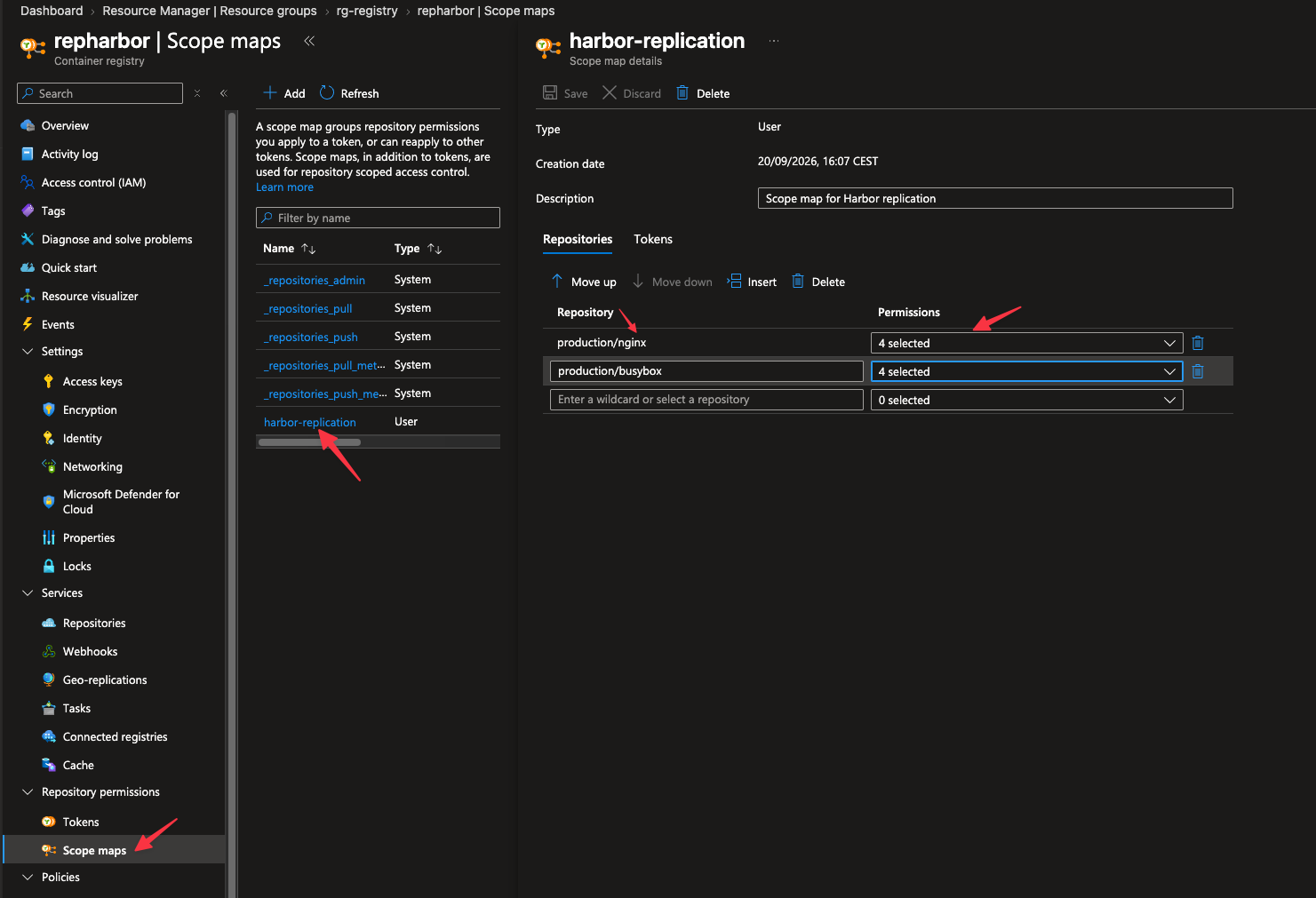
And the token is bound to that scope map, with its password available on demand rather than tied to the registry’s admin account:
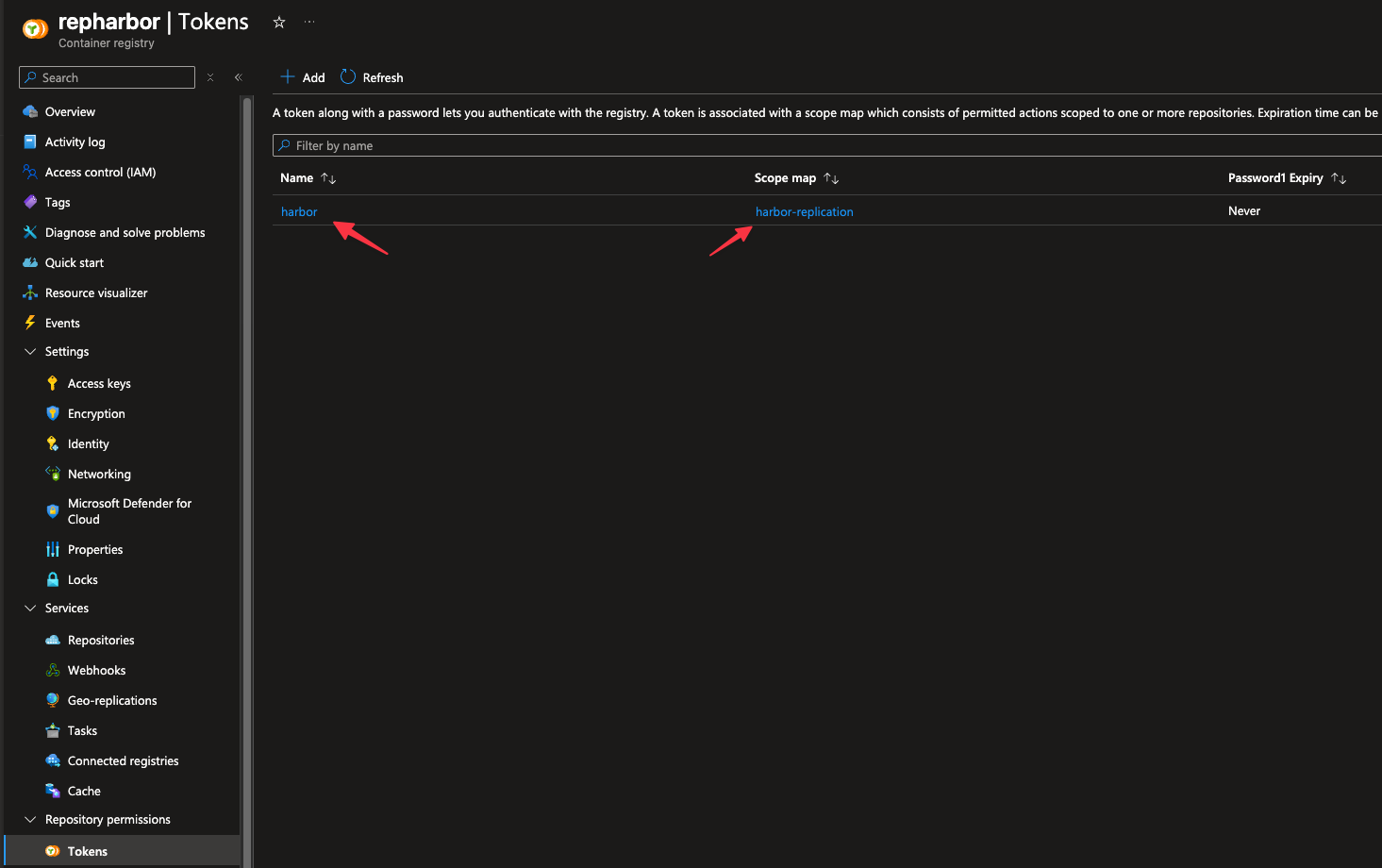
The last command prints the token’s password — store it in your secrets manager immediately. If you need to replicate into another repository later, run az acr scope-map update --add-repository again; every token attached to that scope map picks up the new permission without being recreated.
Token passwords can be regenerated independently and given an expiry, so treat rotation the same way you would any other credential used by an automated system:
az acr token credential generate \
  --name "$TOKEN_NAME" \
  --registry "$ACR_NAME" \
  --resource-group "$ACR_RESOURCE_GROUP" \
  --password1 \
  --expiration-in-days 90 \
  --query "passwords[0].value" \
  --output tsv
Step 2: Create the Replication Endpoint in Harbor
Following Harbor’s Creating Replication Endpoints guide:
- In the Harbor UI, go to Administration → Registries and click + New Endpoint.
- For Provider, select Azure Container Registry from the drop-down — it is one of the natively supported non-Harbor registry types.
- Give the endpoint a name, e.g.
azure-acr-prod. - For Endpoint URL, enter the registry’s full login server URL, e.g.
https://myacr.azurecr.io. - For Access ID, enter the ACR token’s name (
harborin Step 1). For Access Secret, enter the token password generated in Step 1. - Leave Verify Remote Cert checked (ACR’s certificate is publicly trusted; only disable this for self-signed/internal registries).
- Click Test Connection, confirm it succeeds, then OK to save.
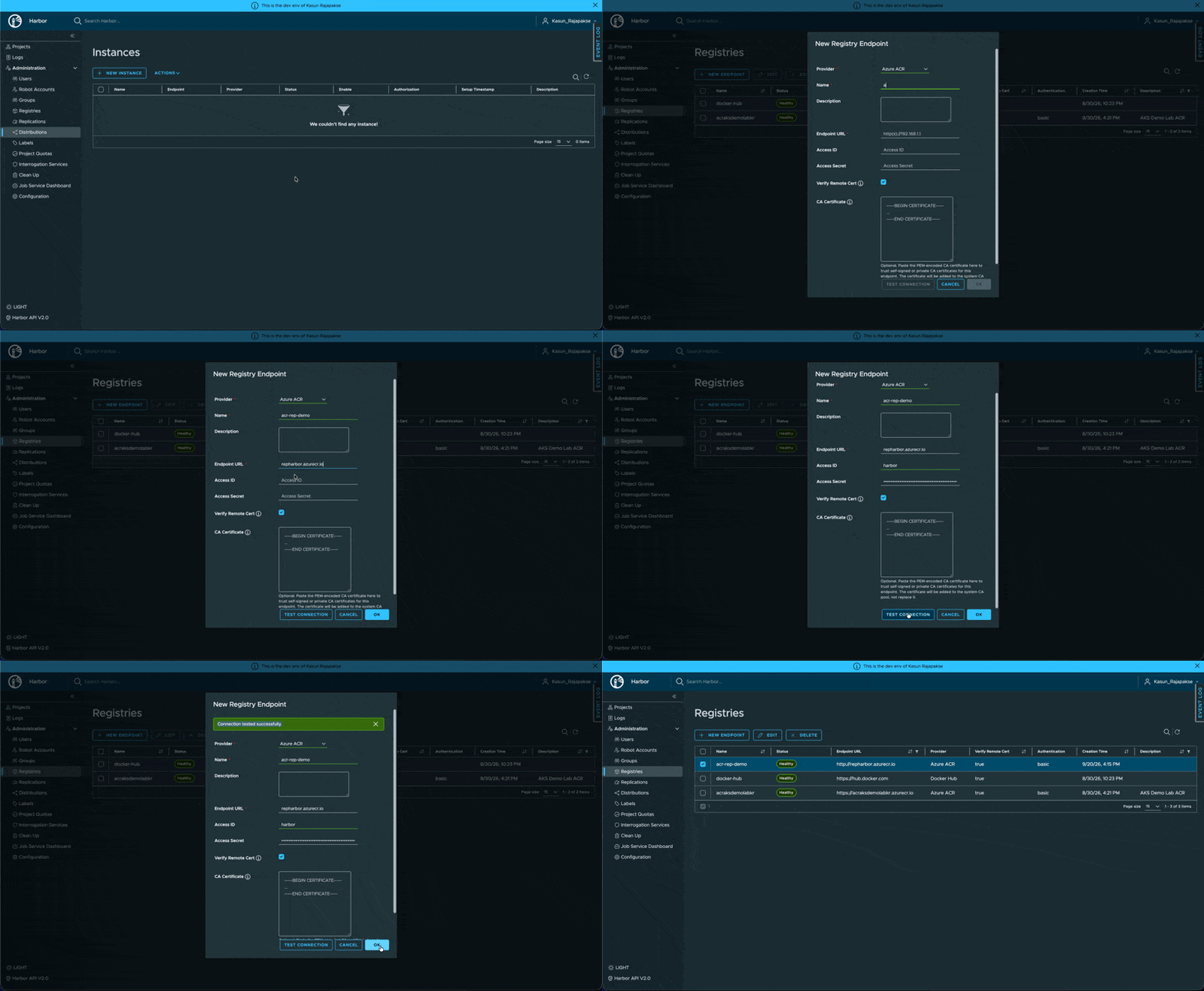
At this point Harbor can authenticate to ACR, but nothing is replicated yet — that requires a rule.
Step 3: Create the Replication Rule
Following Harbor’s Creating a Replication Rule guide, go to Administration → Replications → New Replication Rule:
- Name: something identifiable, e.g.
mirror-prod-to-acr. - Replication mode: Push-based, since Harbor is the source and ACR is the destination.
- Source resource filter: scope the rule instead of mirroring the whole registry:
- Name: match a project/repository pattern, e.g.
production/**to include every repository under theproductionproject (*matches within a path segment,**matches across/,?matches a single character, and{a,b}matches any of a comma-separated list). - Tag: optionally restrict to specific tags, e.g. exclude
*-rc*release candidates. - Resource: choose Images (or Artifacts to also include Helm charts and other OCI artifacts).
- Name: match a project/repository pattern, e.g.
- Destination registry: the
azure-acr-prodendpoint created in Step 2. - Destination namespace: the ACR repository prefix to replicate into. Leave blank to keep the same namespace as the source project, or set one explicitly, e.g.
mirror. - Destination flattening: controls how much of the source path is preserved. No Flattening keeps the full hierarchy (
production/team/app→mirror/production/team/app); Flattening 1 level (the default) drops the first segment. - Trigger Mode:
- Event Based — replicates immediately whenever an artifact is pushed or retagged in the matching project. This is the closest to a live mirror. Note that deletions are not replicated by default; check Delete remote resources when locally deleted if you want removals to propagate too.
- Scheduled — runs on a cron expression, useful for a nightly sync instead of a continuous one.
- Manual — only replicates when you click Replicate, useful for deliberate promotion between environments.
- Optionally set a bandwidth limit (KB/s) so a large backfill doesn’t saturate the AKS node’s egress, and enable Override if you want replicated artifacts to overwrite same-named ones already in ACR.
Click Save.
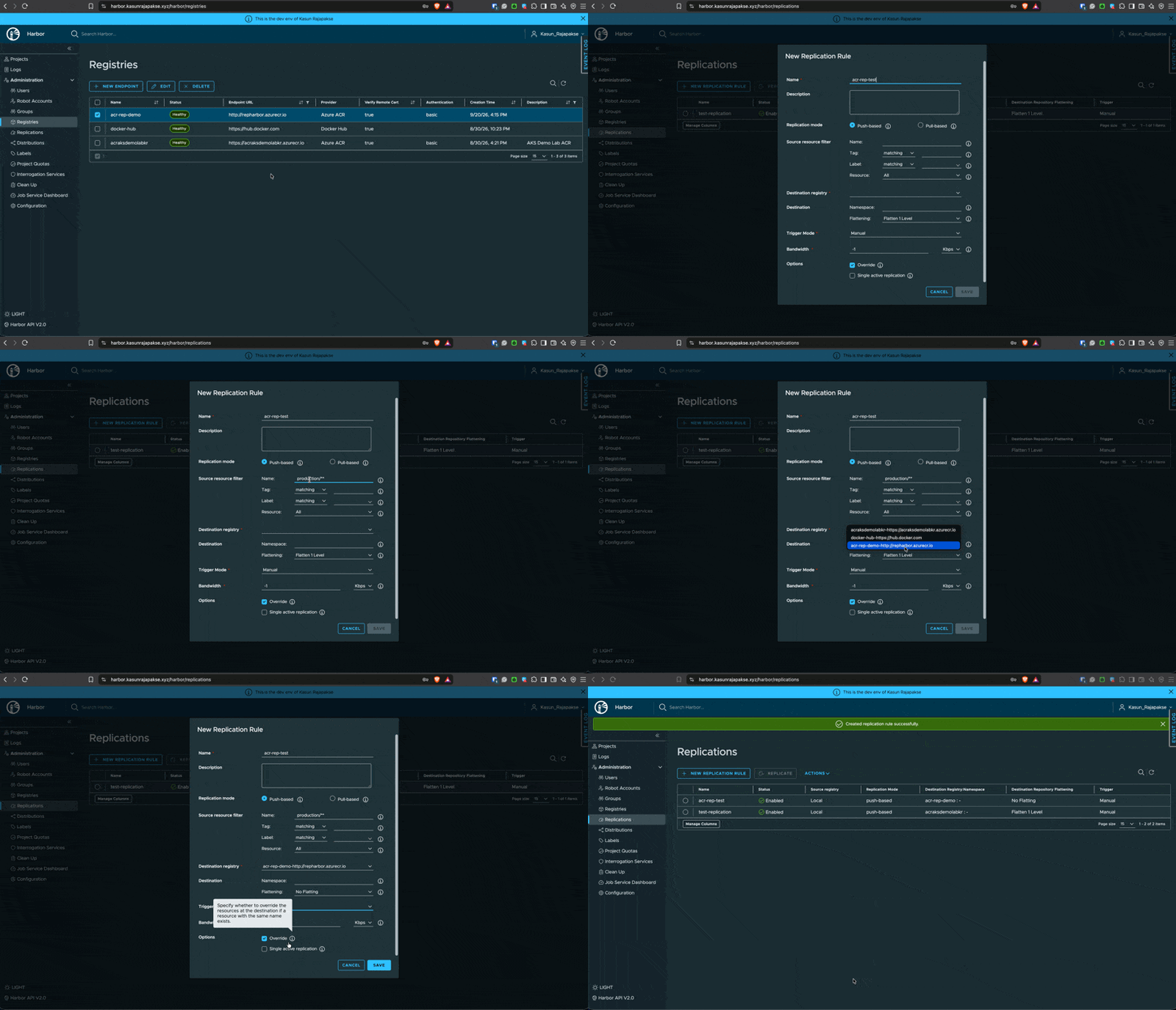
Step 4: Trigger and Verify Replication
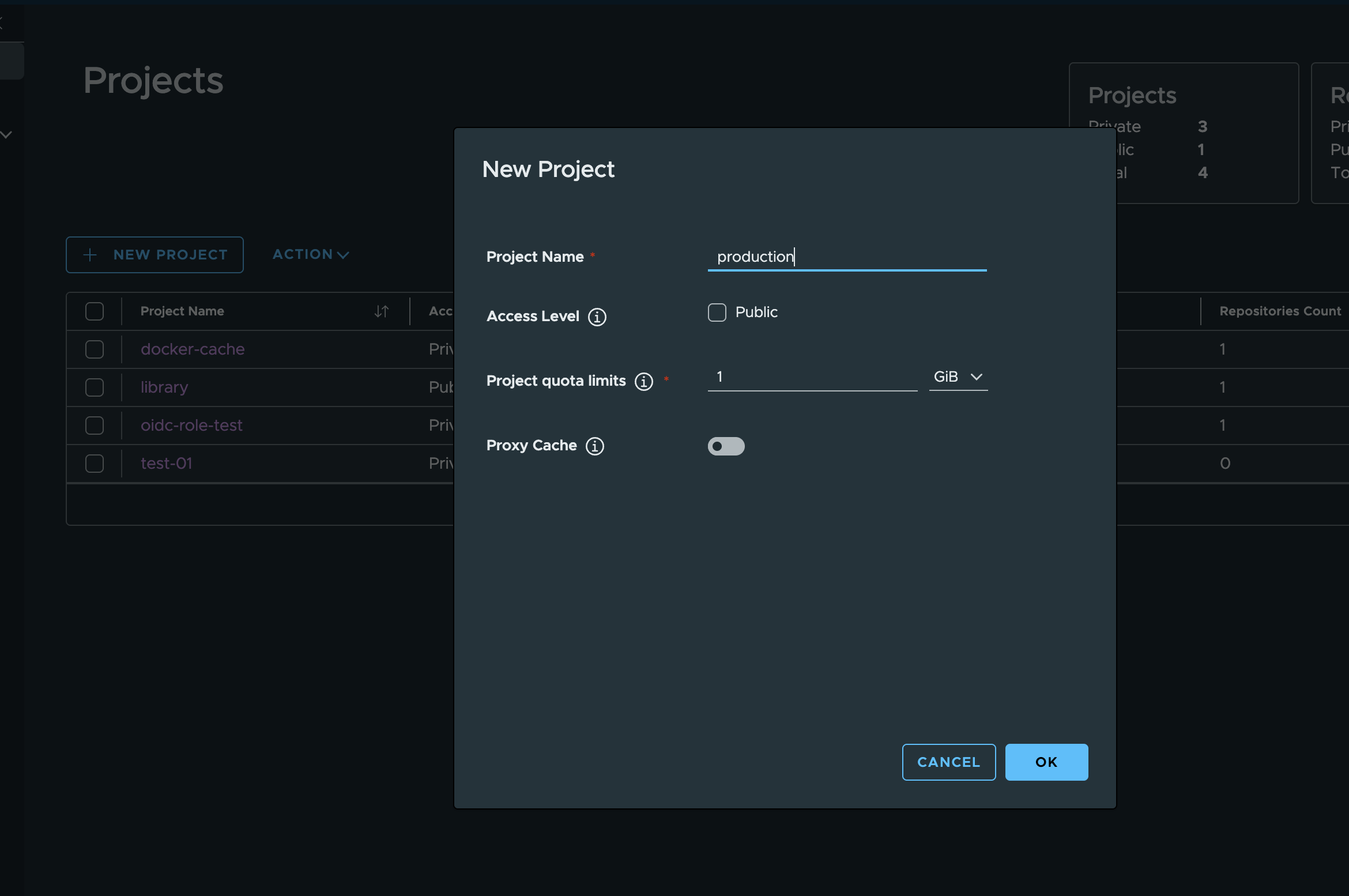
The replication rule above filters on a production project, so make sure it exists before pushing anything — Projects → New Project in the Harbor UI:
Log in to Harbor and push a matching image into that project. For an event-based rule this alone triggers replication:
docker login harbor.example.com
docker tag nginx:1.27 harbor.example.com/production/nginx:1.27
docker push harbor.example.com/production/nginx:1.27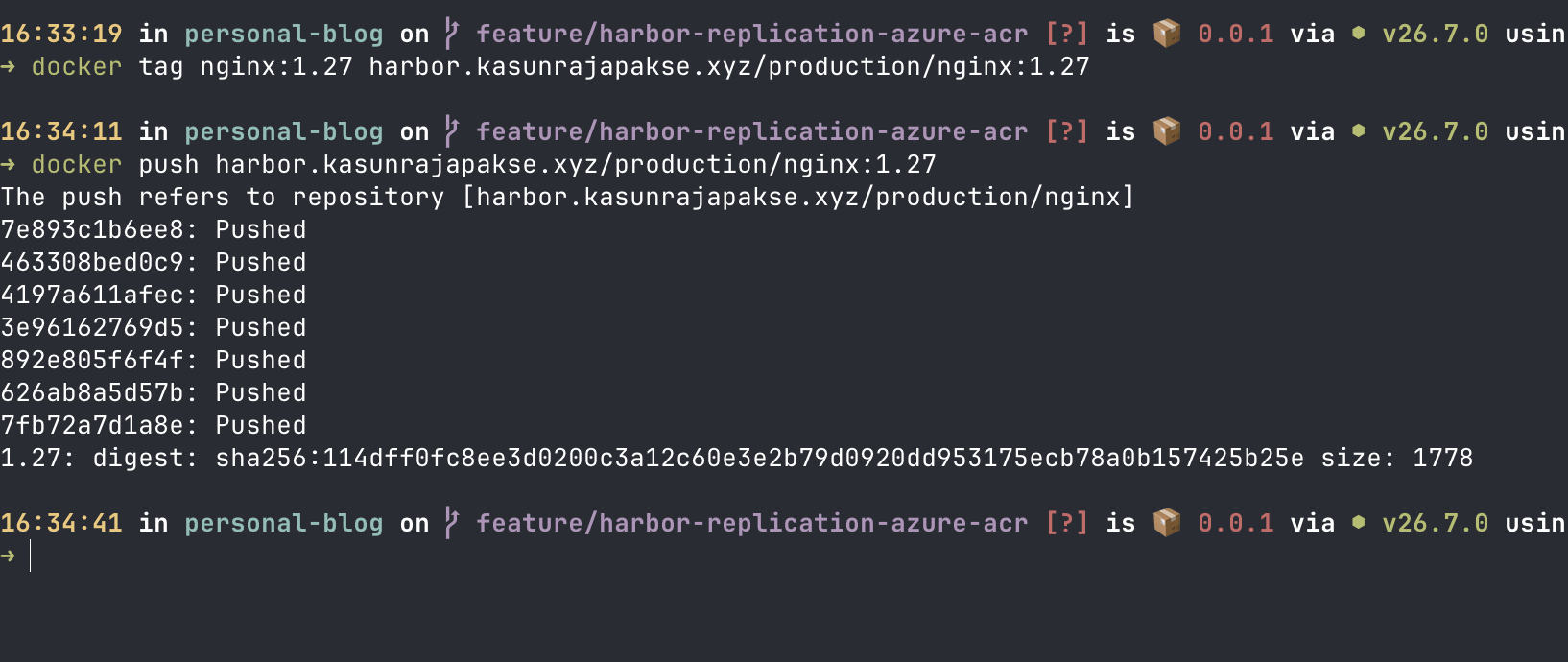
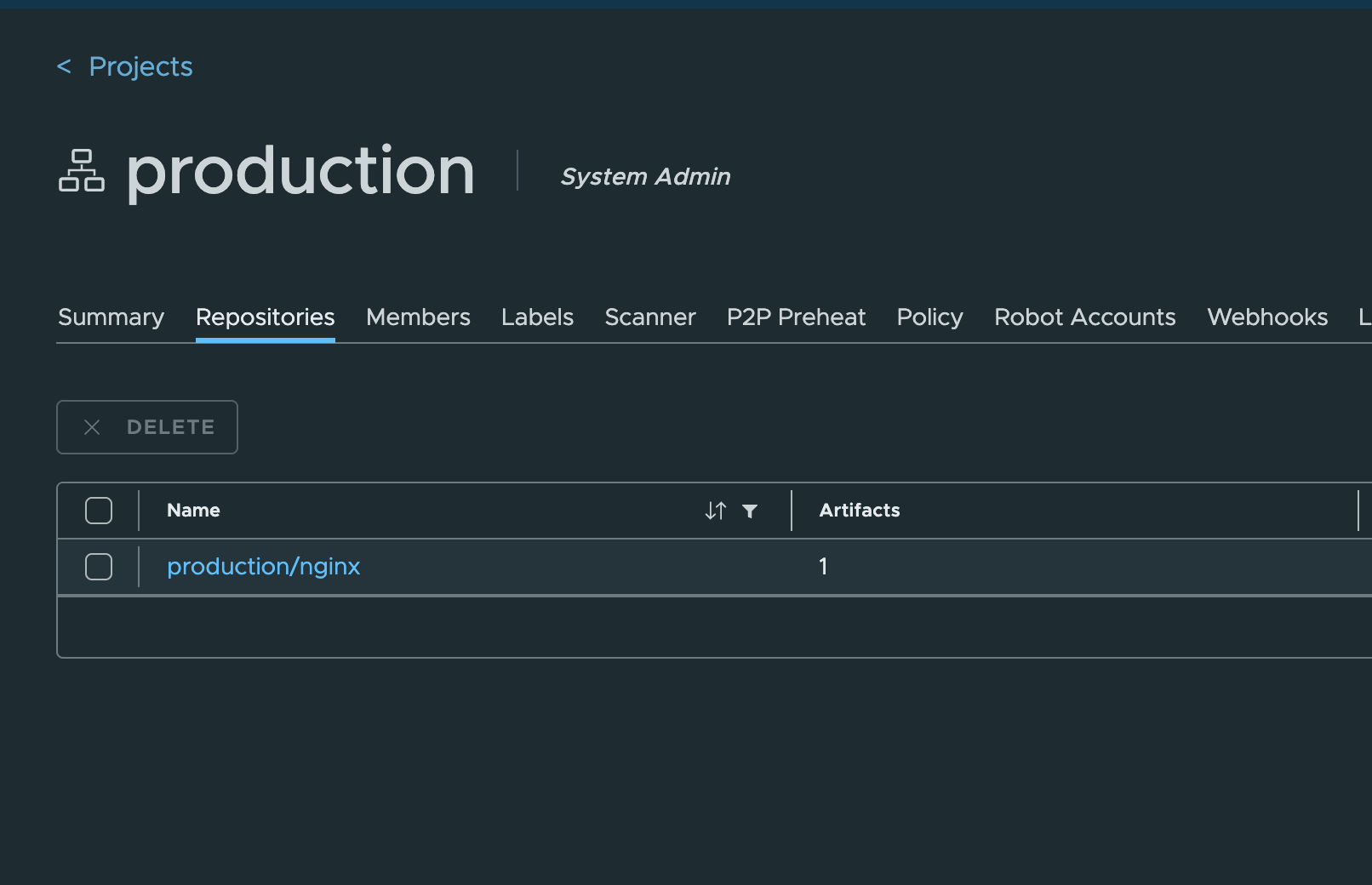
The image now shows up under the production project in Harbor:
For a manual or scheduled rule instead, go to Administration → Replications, select the rule, and click Replicate to run it immediately, as described in Running Replication Manually:
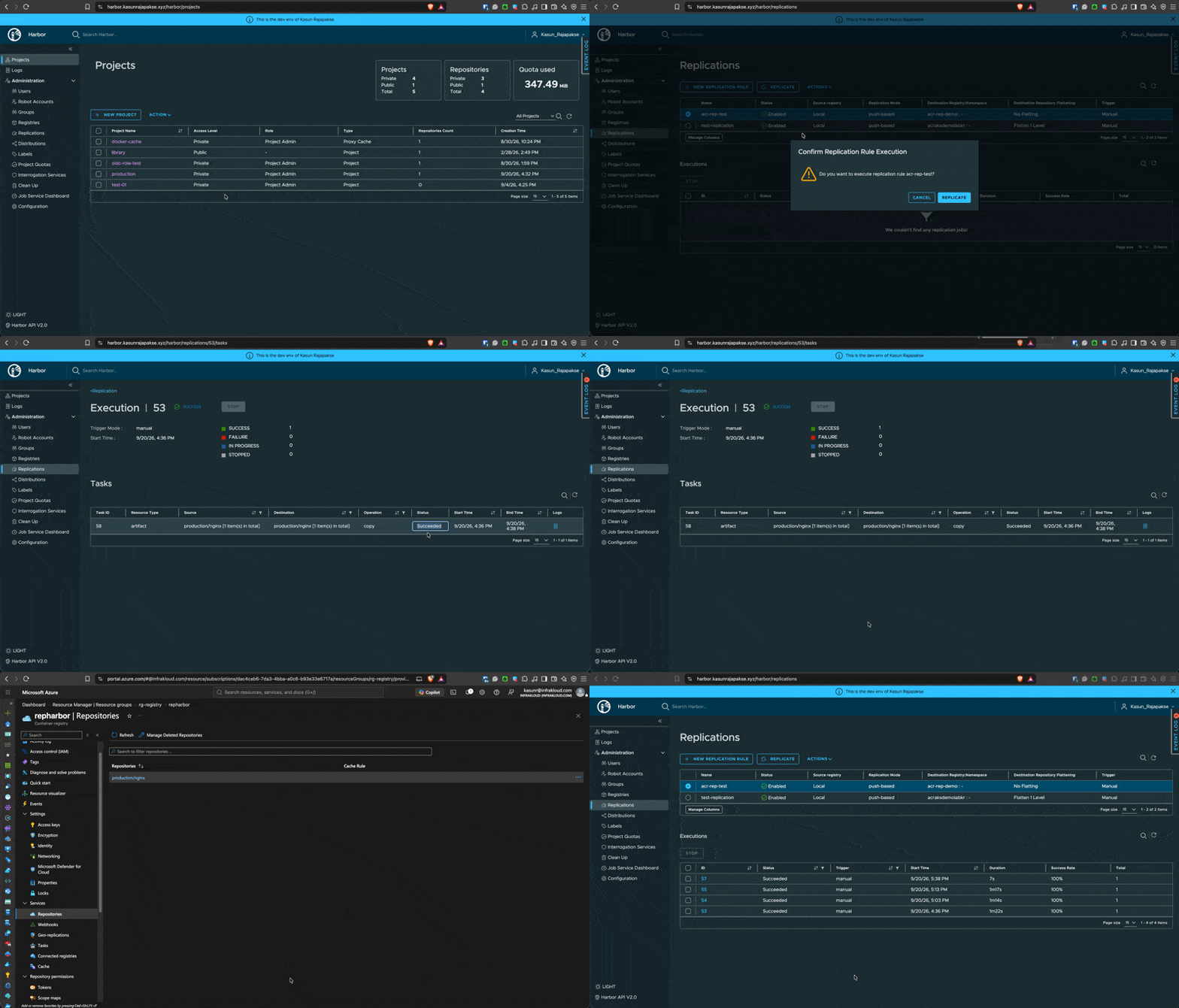
Click the rule to see its execution history, then the execution ID to see per-artifact task status and logs while the copy is running:
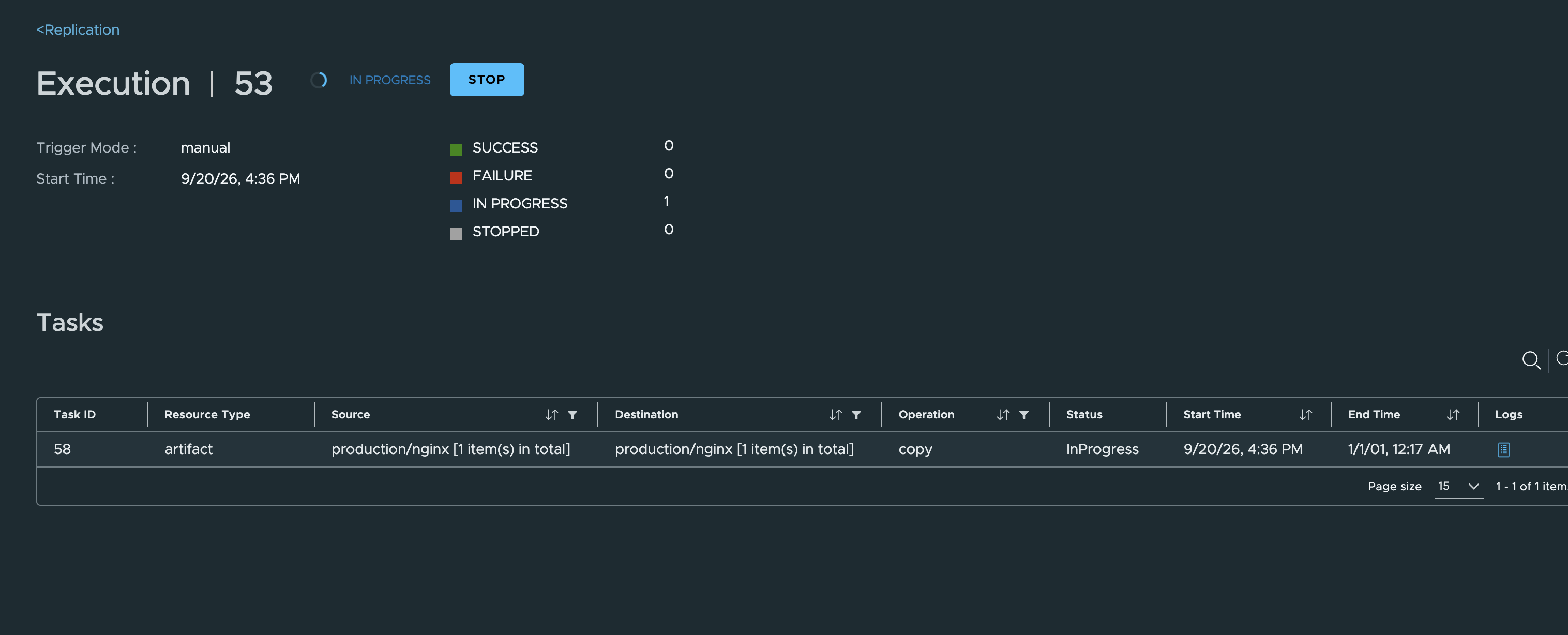
Confirm the image landed in ACR:
az acr repository show-tags \
  --name myacr \
  --repository production/nginx \
  --output table
The repository shows up in the Azure portal too, under the destination registry’s Repositories blade (this rule left Destination namespace blank, so the source project name carried straight over):
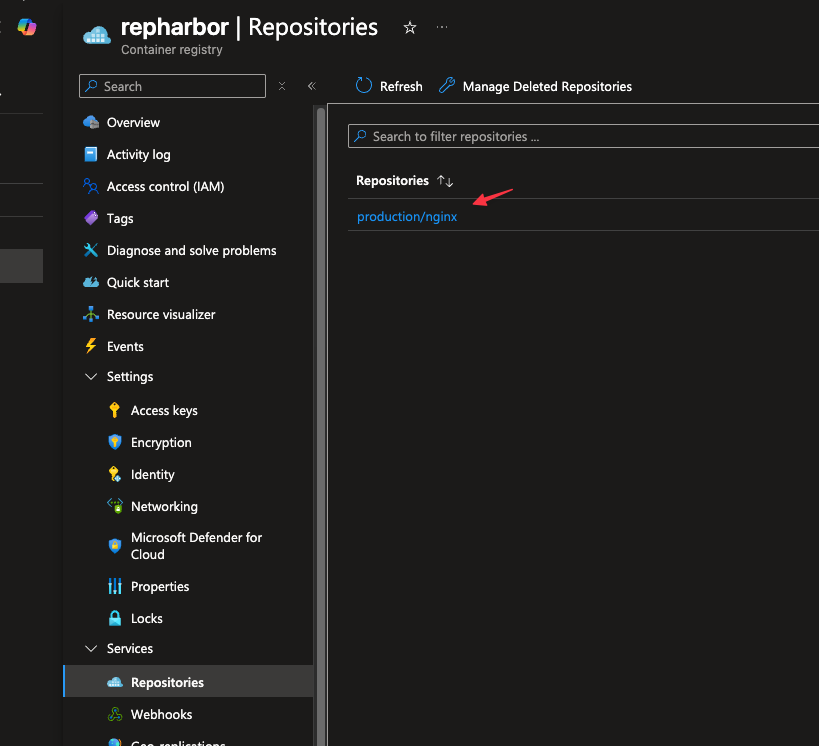
If a task fails, Harbor automatically retries it a few times before giving up — check the task log icon in the execution details for the underlying error (most commonly an expired or regenerated token password, or a repository not yet added to the scope map).
Networking Considerations When Harbor Is Private
If Harbor’s AKS cluster restricts egress (a UDR-forced firewall, Azure Firewall, or NAT gateway with explicit allow-listing), the jobservice pods need a path to both the registry’s login server and its blob storage endpoint on port 443 — pushing an image talks to <registry>.azurecr.io for the registry API and to *.blob.core.windows.net (or a dedicated data endpoint <registry>.<region>.data.azurecr.io) for the actual image layers:
- With Azure Firewall, add an application rule allowing the FQDNs
<registry>.azurecr.ioand*.blob.core.windows.net(or the dedicated data endpoint).AzureContainerRegistryis not one of Azure Firewall’s predefined FQDN tags — those only cover a fixed list of Microsoft services. For IP-based network rules instead, use theAzureContainerRegistryservice tag, optionally scoped to a region asAzureContainerRegistry.<region>. - With network-restricted ACR (
--public-network-enabled falseor a service/private endpoint), either peer the AKS VNet to the ACR’s private endpoint VNet, or add the Harbor node pool’s subnet to the ACR’s allowed virtual networks. - If Harbor itself sits behind a private ingress (as in the Traefik + cert-manager install), none of that changes here — replication traffic originates from
jobserviceinside the cluster, not through the public ingress.
Troubleshooting
| Symptom | Likely Cause | Fix |
|---|---|---|
| Test Connection fails on the endpoint | Wrong login server URL, or the token is disabled | Confirm https://<registry>.azurecr.io and check az acr token show --name harbor --registry myacr reports the token as enabled |
| Replication task fails with an auth error | Token password expired or was regenerated without updating Harbor | Generate a new password with az acr token credential generate and update the Access Secret on the endpoint |
| Replication succeeds but a repository is missing in ACR | The scope map doesn’t include that repository | Add it with az acr scope-map update --add-repository <repo> content/read content/write metadata/read metadata/write |
| Only some tags/images replicate | Name/tag filter pattern is narrower than expected | Test the glob pattern against library/* vs library/** semantics from the filter docs |
| Deleted image still exists in ACR | Deletions are not replicated by default | Enable Delete remote resources when locally deleted on an event-based rule |
| Replication hangs or is very slow | Bandwidth limit set too low, or AKS egress path to ACR is blocked | Check the rule’s bandwidth setting and the firewall/NSG rules covering *.azurecr.io |
Security Considerations
- Scope the ACR token’s scope map to the specific repositories Harbor needs to write to — never the registry’s admin account or a system-defined scope map covering every repository.
- Store the token password only inside Harbor’s replication endpoint configuration (encrypted at rest in Harbor’s database) — never in a Helm
values.yamlor a Git repository. - Track the token password’s expiry as part of routine platform maintenance; an expired or regenerated password fails silently until the next replication attempt.
- Use resource filters to replicate only what downstream consumers actually need — a narrower Name/Tag filter is both a cost control and a smaller blast radius if the destination is compromised.
- If the destination ACR is also scanned by Microsoft Defender for Containers, treat replication as another ingestion path that should feed the same vulnerability and policy checks as direct pushes.
Automating with the Harbor Terraform Provider
Everything above can also be codified. The community-maintained Terraform Provider for Harbor exposes a harbor_registry resource for the replication endpoint and a harbor_replication resource for the rule. Point the provider at Harbor’s API (url, username, password, or the equivalent HARBOR_URL/HARBOR_USERNAME/HARBOR_PASSWORD environment variables) and manage the endpoint and rule as versioned configuration instead of clicking through the UI — worthwhile once you have more than one or two replication targets to keep consistent across environments.
Closing Thoughts
Harbor’s replication engine turns “copy these images to ACR” from a scripting problem into a declarative rule: one endpoint, one filter, one trigger mode. Scoping the credential to a repository-level ACR token keeps the blast radius small, and event-based triggers mean the mirror stays current without a cron job or a pipeline step to maintain.
The installation, audit-log forwarding, monitoring, and SSO for this same Harbor-on-AKS deployment are covered by the other posts in this series: