
Harbor’s local administrator account is useful while bootstrapping a registry, but it is not a good identity strategy for a team. Microsoft Entra ID gives Harbor centralized sign-in, group-based access, and a cleaner offboarding path without creating a separate Harbor account for every user.
This post adds Entra ID OpenID Connect (OIDC) single sign-on to the Harbor installation from the previous post. The complete working example is in the AKS-Harbor-Registry-Demo directory of the companion repository.
What the integration creates
The Terraform configuration in the demo creates the Entra objects and Harbor consumes the resulting OIDC settings:
- One Entra app registration and service principal for Harbor.
- One client secret, stored only in Terraform state and the generated, gitignored Harbor values file.
- Delegated
openid,profile,email,offline_access, andUser.Readpermissions with tenant-wide admin consent. - Six security groups representing Harbor’s system and project roles.
- An
ApplicationGroupgroup-membership claim so Harbor can map Entra groups to Harbor permissions.
The browser flow is:
flowchart LR
    User["User"] --> Harbor["Harbor portal"]
    Harbor --> Entra["Microsoft Entra ID\nOIDC authorization"]
    Entra --> Harbor
    Harbor --> Claims["ID token: groups claim"]
    Claims --> Role["Harbor global or\nproject role"]
Harbor receives Entra group object IDs in the groups claim. It does not match the display names of the groups, so the Harbor configuration must use the object ID of the administrator group.
Prerequisites
This walkthrough assumes that Harbor is already running on AKS with a public HTTPS hostname. The hostname must be stable because Entra validates the redirect URI exactly.
You also need:
- Terraform 1.6 or newer and the
azureadprovider available to the demo. - Permission to create app registrations, service principals, security groups, client secrets, and grant tenant-wide admin consent.
- An existing
terraform.tfvarsbased on the demo’s example file. - A working
kubectlcontext for the Harbor cluster.
The demo enables OIDC by default. To make that explicit in terraform.tfvars:
enable_oidc_auth = true

harbor_admin_group_name           = "harbor-admins"
harbor_projectadmin_group_name    = "harbor-projectadmins"
harbor_maintainer_group_name      = "harbor-maintainers"
harbor_developer_group_name       = "harbor-developers"
harbor_guest_group_name           = "harbor-guests"
harbor_limited_guest_group_name   = "harbor-limited-guests"

harbor_admin_group_member_upns = [
  "admin@example.com",
]
The group names are configurable. The names above are only the defaults used by the example.
Step 1: Let Terraform create the Entra application
Run Terraform from the terraform directory in the demo repository:
terraform -chdir=terraform init -input=false
terraform -chdir=terraform apply -auto-approve
The application redirect URI is derived from the Harbor hostname:
https://<harbor-fqdn>/c/oidc/callbackYou can retrieve the generated URI and application details from Terraform outputs:
terraform -chdir=terraform output -raw harbor_oidc_redirect_uri
terraform -chdir=terraform output -raw harbor_oidc_client_id
terraform -chdir=terraform output -raw harbor_oidc_tenant_id
Do not copy the client secret into a Markdown file, shell history, or a committed values file. The demo marks the sensitive outputs as sensitive and renders the secret into a local file that is ignored by Git.
Terraform also creates the six security groups. The first members of harbor-admins come from harbor_admin_group_member_upns; the other groups start empty so project access can be granted deliberately.
Step 2: Understand the role mapping
Harbor has one global OIDC administrator mapping and several project-scoped roles. The demo maps them as follows:
| Entra group | Harbor role | Scope |
|---|---|---|
harbor-admins | System Admin | Global |
harbor-projectadmins | ProjectAdmin | Per project |
harbor-maintainers | Maintainer | Per project |
harbor-developers | Developer | Per project |
harbor-guests | Guest | Per project |
harbor-limited-guests | Limited Guest | Per project |
Only the harbor-admins object ID is configured as Harbor’s global oidc_admin_group. The other groups become useful after they are assigned to a Harbor project.
Get the group object IDs from Terraform:
terraform -chdir=terraform output harbor_admin_group_object_id
terraform -chdir=terraform output harbor_projectadmin_group_object_id
terraform -chdir=terraform output harbor_maintainer_group_object_id
terraform -chdir=terraform output harbor_developer_group_object_id
terraform -chdir=terraform output harbor_guest_group_object_id
terraform -chdir=terraform output harbor_limited_guest_group_object_id
The IDs are GUIDs. That is expected: Entra emits group object IDs by default, not group display names.
Step 3: Configure Harbor’s OIDC settings
The demo writes the Entra values into Harbor’s core.configureUserSettings JSON in kubernetes-manifests/harbor-values.yaml.tpl before the Helm release is installed or upgraded. The important settings look like this:
core:
  configureUserSettings: |
    {
      "auth_mode": "oidc_auth",
      "oidc_name": "Microsoft Entra ID",
      "oidc_endpoint": "https://login.microsoftonline.com/<tenant-id>/v2.0",
      "oidc_client_id": "<application-client-id>",
      "oidc_client_secret": "<application-client-secret>",
      "oidc_scope": "openid,profile,email,offline_access,User.Read",
      "oidc_groups_claim": "groups",
      "oidc_admin_group": "<harbor-admins-object-id>"
    }
The real template uses shell substitutions from Terraform outputs rather than committing those placeholders or values. The callback URL must remain consistent with the hostname in externalURL:
https://<harbor-fqdn>/c/oidc/callbackThe groups value is important. The Entra app is configured with group_membership_claims = ["ApplicationGroup"], and Harbor is told to read that claim with oidc_groups_claim.
Re-render the values and upgrade Harbor after Terraform has created the application:
export HARBOR_FQDN="$(terraform -chdir=terraform output -raw harbor_fqdn)"
export HARBOR_OIDC_CLIENT_ID="$(terraform -chdir=terraform output -raw harbor_oidc_client_id)"
export HARBOR_OIDC_CLIENT_SECRET="$(terraform -chdir=terraform output -raw harbor_oidc_client_secret)"
export HARBOR_OIDC_TENANT_ID="$(terraform -chdir=terraform output -raw harbor_oidc_tenant_id)"
export HARBOR_OIDC_ADMIN_GROUP="$(terraform -chdir=terraform output -raw harbor_admin_group_object_id)"

envsubst < kubernetes-manifests/harbor-values.yaml.tpl > .rendered/harbor-values.yaml

helm upgrade --install harbor harbor/harbor \
  --version 1.19.2 \
  --namespace harbor \
  -f .rendered/harbor-values.yaml \
  --set-string harborAdminPassword="$(terraform -chdir=terraform output -raw harbor_admin_password)" \
  --wait --timeout 10m
The demo’s deploy.sh performs this rendering and upgrade for you. Prefer that script when deploying the complete stack because it also validates the pinned chart and applies the ingress and monitoring resources in the required order.
Step 4: Sign in and grant project access
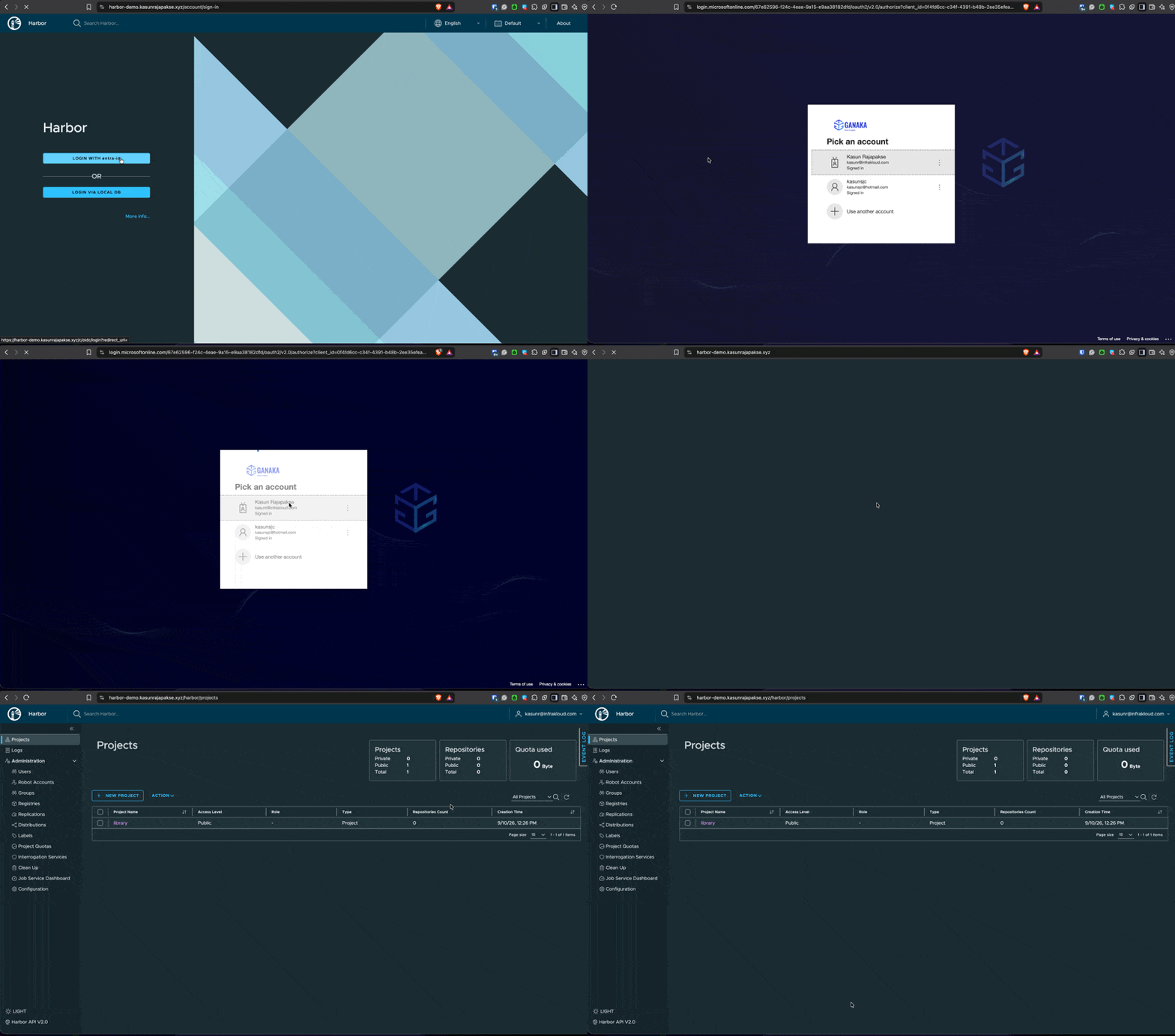
Open the Harbor URL and select LOGIN VIA OIDC PROVIDER. The first user in the harbor-admins group should receive the System Admin role.
For project-scoped access:
- Sign in as a Harbor administrator.
- Open a Harbor project and choose Members.
- Choose User Group.
- Paste the relevant Entra group object ID.
- Select the matching Harbor role and save the membership.
For example, assign harbor-developers to a project as Developer and harbor-guests as Guest. This keeps broad administrative rights separate from the permissions needed to push or pull images in one project.
After a user is added to an Entra group, the next OIDC login or token refresh should include the new membership. Existing Harbor sessions may need to be signed out before testing a changed role.
Verify the claim and Harbor configuration
If a user can sign in but has the wrong role, check the following in order:
kubectl get pods -n harbor
kubectl logs -n harbor deploy/harbor-core --tail=100
kubectl get secret -n harbor
Then compare the values used by Harbor with the Terraform outputs. In particular, verify that:
oidc_endpointuses the correct tenant ID and/v2.0endpoint.oidc_client_idis the application client ID, not the object ID.oidc_groups_claimis exactlygroups.oidc_admin_groupis theharbor-adminsobject ID.- The redirect URI uses HTTPS and exactly matches the Harbor hostname.
- The signed-in user is a member of the expected Entra group.
A useful distinction is that successful authentication and successful authorization are separate checks. A user can complete OIDC sign-in while still having no Harbor project membership.
Break-glass access and secret rotation
The local admin account remains available as a break-glass account even when OIDC is enabled. Store its generated password in an approved secret manager and restrict its use to recovery or configuration changes.
The Harbor OIDC client secret is not a replacement for workload identity. It is required by Harbor’s OIDC client and therefore has to be protected. The demo gives it a one-year expiry. Before expiry, rotate it by recreating the Terraform password resource and applying the Harbor values again:
terraform -chdir=terraform taint 'azuread_application_password.harbor[0]'
terraform -chdir=terraform apply
./deploy.sh
Use the exact Terraform resource address printed by terraform state list if the module or resource address differs in your checkout. Never put the generated secret in terraform.tfvars or source control.
Troubleshooting
| Symptom | Likely cause | Check |
|---|---|---|
| Harbor still shows the local login form | OIDC is disabled or the Helm values were not upgraded | Confirm enable_oidc_auth = true, then rerun Terraform and deploy.sh |
| Entra reports a redirect URI error | The callback URL does not exactly match Harbor’s public URL | Compare the Entra redirect URI with harbor_oidc_redirect_uri |
| Sign-in succeeds but the user is not an admin | The group claim is absent or the wrong group ID is configured | Check groups, oidc_groups_claim, and oidc_admin_group |
| User has no project access | Project role groups are not global roles | Add the group object ID to the Harbor project membership |
| Entra consent is denied | The deploying identity lacks directory permissions | Grant the required app-registration and admin-consent permissions |
| OIDC stops working after a year | The client secret expired | Rotate azuread_application_password.harbor[0] and redeploy |
Security considerations
- Keep
terraform.tfvars, Terraform state, and.rendered/harbor-values.yamlout of source control. Terraform state contains the OIDC client secret even when the output is marked sensitive. - Scope Entra group membership to the minimum Harbor project access required.
- Keep the local admin account disabled for routine use, but test the break-glass credentials before relying on them.
- Review the client-secret expiry date as part of normal platform maintenance.
- Treat group object IDs as configuration identifiers, but treat the OIDC client secret and Terraform state as secrets.
Closing thoughts
OIDC makes Harbor feel like part of the platform instead of another identity silo. Terraform owns the Entra application and group lifecycle, while Harbor owns project membership and registry permissions. That division gives the cluster a repeatable bootstrap path without making every project permission change an infrastructure deployment.
The installation, audit-log forwarding, and Azure Monitor integration remain covered by the other posts in this series: