
Most of my Kubernetes debugging sessions look the same. A terminal with three kubectl tabs, the Azure portal open on the cluster blade, Grafana on another monitor, and a YAML file I am editing in VS Code while trying to remember whether the indentation under resources is two spaces or four. Nothing is broken about that workflow — it is just a lot of context switching for what is usually a very small question: why is this one pod unhappy?
I tried AKS desktop, Microsoft’s local app for exploring clusters and managing workloads. It is built on the open-source Headlamp project, is available for Windows, macOS, and Linux, and is open source on GitHub under Apache-2.0. AKS desktop adds Projects, guided deployment, a preview AI assistant, and a plugin catalog to the Headlamp experience.
This post walks through a small hands-on demo: create a cluster, deploy an app through the UI, deliberately break its image pull, and run a separate DNS probe for the assistant to inspect.
📖 References:
The mental model: Projects, not resources
The main organizing idea in AKS desktop is the Project.
A Project groups application resources around a Kubernetes namespace. It provides a shared view of resources, logs, metrics, scaling, access, and diagnostics, rather than requiring you to assemble that picture from separate resource lists.
| Concept | AKS desktop Project | Kubernetes Namespace |
|---|---|---|
| Purpose | Application-level grouping | Resource isolation |
| Abstraction level | High — developer-facing | Low — infrastructure-facing |
| Mapping | Typically 1:1 with a namespace | Native Kubernetes primitive |
There are three common ways to set one up:
- New AKS managed namespace — this links the Project to an AKS managed namespace, where quotas and network policies are configured as managed-namespace settings and access can be assigned through Azure RBAC.
- New namespace — a standard Kubernetes namespace with AKS desktop Project labels applied.
- Existing namespace — import a namespace you already have. AKS desktop adds labels to it and surfaces it as a Project. Your running workloads are not touched.
Importing an existing namespace lets you start viewing its workloads without redeploying them.
Important: AKS desktop abstracts Kubernetes, it does not lock you out of it. Everything it creates is normal Kubernetes objects, and
kubectl, Helm, and your CI/CD pipelines keep working exactly as before.
Setting up the lab
The cluster
AKS desktop works with AKS Automatic and Standard clusters. Some features depend on cluster configuration, so the tier alone does not determine what is available:
| Feature | What it needs | Cluster tier |
|---|---|---|
| Browsing resources, Map, logs | Cluster access | AKS Automatic or Standard |
| Plain-namespace Projects | Permission to create or label the namespace | AKS Automatic or Standard |
| AKS managed-namespace Projects (quota, network policy, Azure RBAC) | Entra ID auth + Azure RBAC — creation-time only | Automatic, or Standard created with --enable-aad --enable-azure-rbac |
| Appearing in Add from Azure Subscription | Entra ID auth | Same as above (otherwise load it from kubeconfig) |
| Metrics tab, Scaling CPU chart | Managed Prometheus — can be added later | Automatic, or Standard with --enable-azure-monitor-metrics |
| Project network policies actually taking effect | A network policy engine — creation-time only | Automatic, or Standard with --network-dataplane cilium --network-policy cilium |
| KEDA / VPA in the Scaling tab | The KEDA and VPA add-ons — can be added later | Automatic, or Standard with --enable-keda / --enable-vpa |
| AI assistant | The plugin plus a model provider | Any registered cluster |
Note the AI assistant row: it is not gated on Automatic.
For this demo I used Automatic, because it is the shortest path to the managed-namespace Project experience in Demo 2 — Entra ID auth, Azure RBAC, managed Prometheus, and the autoscaling add-ons are all pre-enabled:
export RG=rg-aksdesktop-demo
export LOCATION=westus3
export CLUSTER=aks-desktop-demo
export ACR=aksdesktopdemo$RANDOM

az extension add --name aks-preview

az group create --name $RG --location $LOCATION

az acr create --resource-group $RG --name $ACR --sku Basic

az aks create \
  --resource-group $RG \
  --name $CLUSTER \
  --sku automatic \
  --attach-acr $ACR
The aks-preview extension line follows the current Microsoft Learn quickstart. AKS desktop v0.10 itself no longer needs that extension for the managed-namespace Project wizard; it uses its bundled Azure CLI for the generally available namespace commands, as noted in Demo 2.
Then grant yourself cluster admin, because Projects need it:
AKS_ID=$(az aks show --resource-group $RG --name $CLUSTER --query id --output tsv)
MY_ID=$(az ad signed-in-user show --query id --output tsv)

az role assignment create \
  --role "Azure Kubernetes Service RBAC Cluster Admin" \
  --assignee $MY_ID \
  --scope $AKS_ID
Finally, pull the kubeconfig down. AKS desktop can register the cluster straight from your Azure subscription without this, but you will want it for the kubectl verification steps later in the post:
az aks install-cli
az aks get-credentials --resource-group $RG --name $CLUSTER
kubelogin convert-kubeconfig -l azurecli

kubectl get nodes
For Entra-authenticated clusters, kubectl uses the kubelogin exec plugin. The authentication flow and token caching depend on the login method in the kubeconfig; if you use the Azure CLI method, make sure you have already signed in with az login. See the kubelogin authentication guide for the available methods.
If you already have a context with the same name, overwrite it:
az aks get-credentials --resource-group $RG --name $CLUSTER --overwrite-existingIf you need to create a new Standard cluster for the same demo, this command enables the matching AKS desktop features:
az aks create \
  --resource-group $RG \
  --name $CLUSTER \
  --location $LOCATION \
  --tier standard \
  --enable-aad \
  --enable-azure-rbac \
  --network-plugin azure \
  --network-plugin-mode overlay \
  --network-dataplane cilium \
  --network-policy cilium \
  --enable-azure-monitor-metrics \
  --enable-keda \
  --enable-vpa \
  --no-ssh-key
KEDA and VPA are optional for this walkthrough. The aks-preview extension may print preview warnings for these flags; in the CLI version used for this demo, it did. The cluster does not need either add-on for the basic HPA example. --no-ssh-key avoids enabling node SSH access, which this walkthrough does not use.
Watch this one. The equivalent command in the AKS desktop cluster setup docs passes
--network-policy ciliumwithout--network-dataplane cilium, and it fails outright:(NetworkPolicyNotSupported) NetworkPolicy cilium requires NetworkDataplane ciliumCilium network policy is enforced by the Cilium data plane, so you have to ask for both — and Azure CNI Powered by Cilium in turn needs either
--network-plugin-mode overlayor a pod subnet. The command above includes all three.
These settings are creation-time only, so they are worth getting right up front:
--enable-aad— without Entra ID auth the cluster does not appear in the Add from Azure Subscription picker. You can still add it via kubeconfig, you just lose the Azure-integrated path.--enable-azure-rbac— needed to assign Admin / Writer / Reader roles on managed-namespace Projects.--network-policy/--network-dataplane— without a policy engine, the ingress and egress rules you set on a Project are silently ignored, which is the worst kind of failure mode.
Managed Prometheus, KEDA, and VPA are all retrofittable later with az aks update. And to restate the point from the table above: none of these flags are prerequisites for the AI assistant.
The app
The container image is the sample Contoso Air app, built straight in ACR so I do not need Docker locally:
git clone https://github.com/Azure-Samples/contoso-air
cd contoso-air/src/web

az acr build --resource-group $RG --registry $ACR --image contosoair:v1 .
Gotcha: do not tag it
latest. AKS Automatic enforces Deployment Safeguards, and alatesttag is a best-practice violation that will block the deployment. Use an explicit tag likev1.
The app itself
Download the installer for your platform from the releases page — .dmg for macOS, .exe for Windows, .AppImage / .deb / .tar.gz for Linux. The desktop UI runs locally and connects to your cluster using your Azure sign-in or kubeconfig. Some optional features, such as the AKS Agentic CLI, also require components in the cluster.
Demo 1: Connect a cluster
On first launch, select Home → Sign in with Azure and pick your account. AKS desktop then reads the subscriptions you have access to.
To register the cluster:
- Select Add from Azure Subscription.
- Pick your subscription (auto-populated if you only have one).
- Select the cluster and choose Register Cluster.
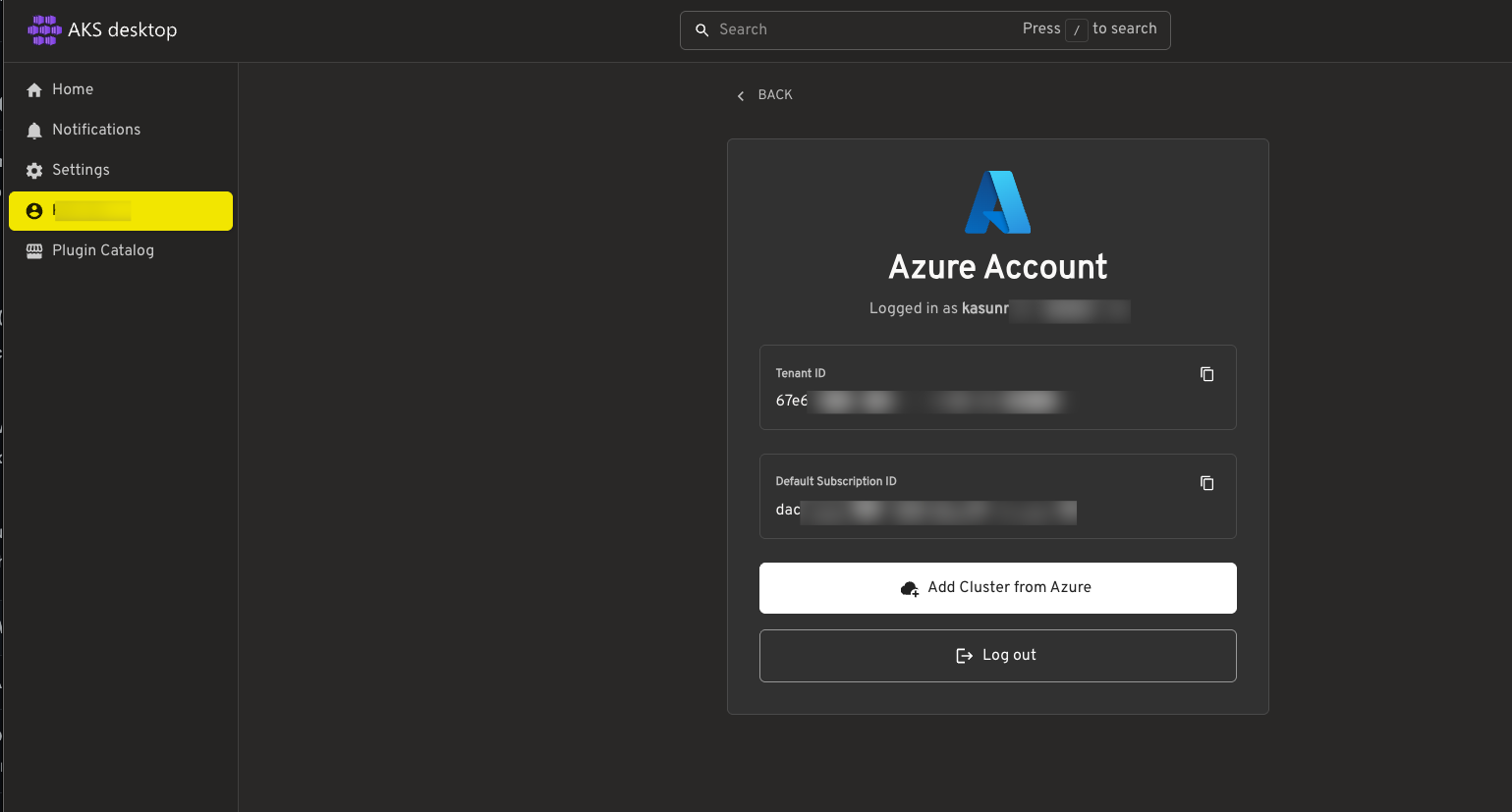
The cluster appears in the left-hand navigation. You can register additional AKS clusters from Azure or load their kubeconfig; switching clusters in AKS desktop does not change your terminal’s active kubectl context.
Once registered, the resource tree groups cluster objects into categories:
| Category | What you get |
|---|---|
| Map | A live dependency graph of how resources reference each other |
| Workloads | Deployments, pods, replica sets, stateful sets, daemon sets, jobs, cron jobs |
| Storage | PVs, PVCs, storage classes |
| Network | Services, ingresses, network policies |
| Gateway (beta) | Gateway API resources |
| Security | RBAC bindings, pod security, network policies |
| Configuration | ConfigMaps and Secrets |
| Custom Resources | Any CRDs on the cluster |
I find the Map useful for tracing relationships such as which Service selects a pod. It can be quicker to inspect those links visually than to compare label selectors across several resources.
Demo 2: Create a Project
In the left pane, go to Projects → Create a New Managed Project.
The wizard asks for four groups of settings:
- Basics — Project name (I used
contoso-air-dev), subscription, and cluster. AKS desktop checks whether the cluster supports the selected Project features. - Networking Policies — ingress and egress rules for the namespace. To reach the app from a browser, set Ingress to
Allow all traffic. This generates realNetworkPolicyobjects. - Compute Quota — CPU and memory limits for the namespace, i.e. a
ResourceQuota. - Access — assign users the Admin, Writer, or Reader role on the Project. These become Azure RBAC role assignments scoped to the managed namespace.
If you followed an older walkthrough, you may remember being prompted to register a ManagedNamespacePreview subscription feature at this point. AKS managed namespaces are now generally available, and as of AKS desktop v0.10.0 that check has been removed from the Create Project wizard — as is the app’s dependency on the aks-preview CLI extension, since it now calls the GA az aks namespace commands through its bundled Azure CLI. Microsoft.ContainerService provider registration is still part of the subscription workflow.
Review, Create Project, and you land inside the empty Project ready to deploy.
The wizard puts quota, network policy, and access controls in one place. A platform team could also manage these settings through its own infrastructure-as-code workflow.
Demo 3: Deploy an app without writing YAML
Inside the Project, select Deploy Application. You get to choose a source: Container Image, Kubernetes YAML, or a Helm chart. I picked Container Image.
The form covers:
- Application name —
contoso-air - Container image —
<your-acr>.azurecr.io/contosoair:v1 - Replicas — start at 2
- Networking — target port
3000, and a toggle for public access - Health checks — readiness and liveness probes
- Resource limits — requests and limits per container
- Environment variables — plain
key: valuepairs - HPA — enable horizontal autoscaling and set the target utilisation
- Advanced — everything else
Select Deploy. When the rollout completes, the Project overview shows the Deployment, ReplicaSet, two Pods, Service, and HPA used in this demo.
Once it is running, the Map tab provides a visual view of the relationships between the Deployment, ReplicaSet, Pods, and Service:
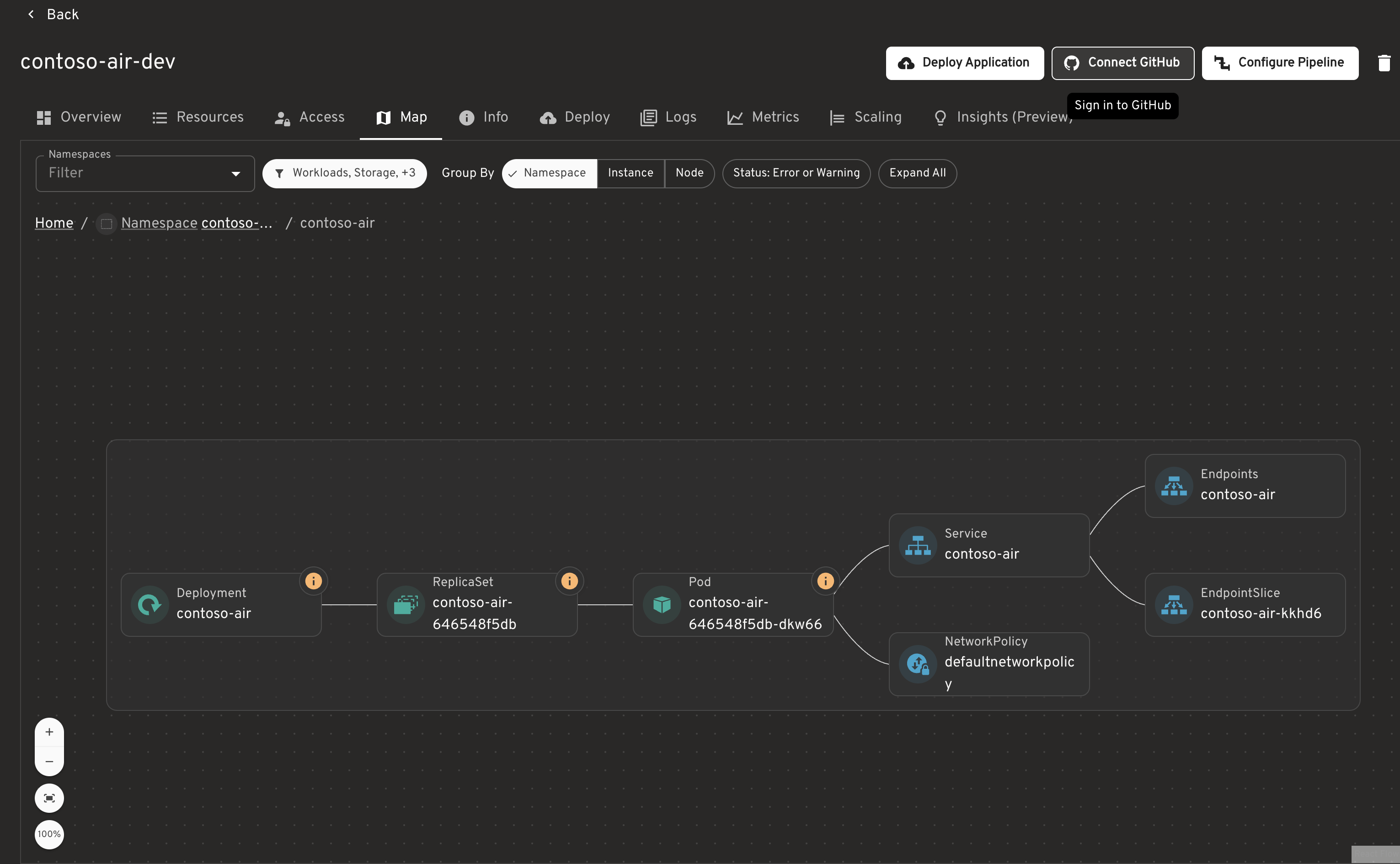
The output is completely ordinary Kubernetes. Verify it from the terminal:
kubectl get all -n contoso-air-dev
kubectl get deployment contoso-air -n contoso-air-dev -o yaml | head -40
That is the point. The UI is a manifest generator with opinions, not a proprietary abstraction. If you later want to move this into GitOps, capture the generated resources as YAML with kubectl and commit them.
Tip: the Metrics tab can take 5–10 minutes to populate on a brand-new deployment while data starts flowing into managed Prometheus. After that first window it loads in seconds. An empty chart in the first few minutes is not a bug.
Demo 4: Test two failure scenarios
To see how the UI presents problems, I first use a bad image tag to fail the Contoso Air Deployment. Then I run a separate DNS probe in the Project namespace; it does not take down the app.
Failure 1: a bad image tag
kubectl set image deployment/contoso-air \
  contoso-air=$ACR.azurecr.io/contosoair:v9-does-not-exist \
  -n contoso-air-dev
After Kubernetes retries the image pull, the Deployment status shows a problem. The pod detail view reports ImagePullBackOff, and its Events panel provides the registry error. You can inspect the same information with kubectl describe pod.
Failure 2: a controlled DNS failure
This creates a separate probe pod in the Project namespace; it does not break Contoso Air or its dependencies. It gives us a controlled failing DNS lookup to investigate. The resource requests and limits help it meet AKS Automatic’s deployment safeguards.
kubectl apply -f - <<'EOF'
apiVersion: v1
kind: Pod
metadata:
  name: dns-breaker
  namespace: contoso-air-dev
spec:
  restartPolicy: Never
  containers:
    - name: dns-breaker
      image: busybox:1.36
      command: ["sh", "-c"]
      args: ["while true; do nslookup payments.internal.invalid; sleep 2; done"]
      resources:
        requests:
          cpu: 10m
          memory: 16Mi
        limits:
          cpu: 100m
          memory: 64Mi
EOF
In a real application, DNS failures can surface as connection errors or latency, but this isolated probe does not reproduce an application outage.
Demo 5: Asking the cluster what is wrong with the AI assistant
The AI assistant is a preview feature for investigating a workload in natural language. What it can inspect depends on the provider and permissions you configure.
According to the docs, the assistant lets you:
- Select a Project, namespace, or workload to investigate.
- Run scoped diagnostics that analyse logs, events, and metrics.
- Get AI-generated summaries with the reasoning and evidence behind them.
- Preview a recommended action before applying it.
- Use a hosted model or bring your own.
Enable it under Settings → Plugins → AI Assistant, toggle Preview, and an assistant icon appears in the top right.
Choosing a provider
The docs describe two provider approaches:
| Option | How it works | Best for |
|---|---|---|
| AKS Agentic CLI Agent (recommended) | The AKS CLI agent runs in your cluster, combining the HolmesGPT agentic framework with the AKS MCP server. It can query cluster state, logs, events, metrics, and Azure resource data within its RBAC permissions. | When you want agent-driven cluster investigation |
| Bring your own model | AKS desktop provides context to a model you configure. | When you want to use a configured hosted or local model |
In short, a configured model reasons over the context supplied to it, while the Agentic CLI option can use its cluster tools to gather additional information within its permissions.
There is also an AI tool Kubernetes Requests toggle under the plugin settings. For the AKS desktop agent using a configured model, enabling it allows direct Kubernetes API requests for resource state, pod logs, events, and metrics; when disabled, that mode relies on context you provide. In Agent mode, the AKS Agentic CLI uses its own MCP tools and permissions for live cluster investigation.
To wire up the recommended path: install the Agentic CLI agent on the cluster, point it at a model, make sure that cluster is registered in AKS desktop, then open the assistant, select Agent, and pick the cluster.
What v0.10.0 added
The assistant moved on noticeably in the latest release, and a few of these change the setup story:
- GitHub Copilot Auto Detect — if you have an authenticated GitHub CLI session and an available Copilot subscription, AKS desktop can discover the model catalog without separate provider setup. This is one setup option, not a requirement.
- Skills — domain knowledge the assistant can draw on. The AKS skill from the Azure Skills repository is configured by default, and you can add your own skill repositories, which is the hook for organisation-specific runbooks.
- MCP server support — opt-in connections to external tools and data sources, with approval controls on requested actions. The
aks-mcpbinary now ships with the app and is preconfigured automatically. - Proactive Diagnosis — an optional preview feature that spots recent warning and error events and surfaces recommendations before you think to ask.
- Resource links in the assistant’s answers now open inside AKS desktop rather than launching a browser.
Using it on the failures from Demo 4
The assistant can use the Project, workload, or resource you have selected as context, so you can ask about that item without restating its name.
Back to the bad image tag. In the Project view, select the degraded Deployment, open the assistant, choose Agent, and ask:
Why are the pods for this deployment not starting?
Ask it to investigate the selected Deployment. With live cluster access, it can inspect pod status and events; check whether it identifies the ImagePullBackOff and the nonexistent v9-does-not-exist tag. Verify its evidence and any suggested kubectl set image command before applying a fix. The exact diagnosis depends on the configured agent and model, so treat its answer as a hypothesis, not a guaranteed result.
The DNS probe tests whether the assistant can investigate resources in the Project namespace. With the dns-breaker pod running, ask:
Is anything in this project failing DNS resolution?
Check whether the agent can see the probe’s output and relevant events. It should not describe this as an outage in Contoso Air: the test pod is separate and deliberately performs its own failing lookup.
Other example prompts to try:
- Summarise the health of this project and tell me what needs attention first.
- This pod keeps restarting — what does the last termination reason tell you?
- Are the resource requests on this deployment sensible given the last hour of metrics?
- Explain this warning event and what I should change.
Where it fits, and where it does not
The honest framing is that the assistant is a first-responder, not an oracle. It can help gather context from logs, events, and metrics, but it does not remove your need to understand the answer. Read the evidence it cites and verify the diagnosis before acting on its recommendations.
A couple of limits are worth keeping in mind:
- It operates inside its RBAC boundaries. The assistant can only retrieve information its configured identity can access. A user with namespace-scoped access should expect namespace-scoped results.
- It suggests actions, it does not silently take them. Recommended changes are previewed so you can decide whether to apply them.
Preview caveats: Microsoft says the AI assistant is early in development and not ready for production use. Model-provider use may incur costs. I would limit testing to nonproduction environments and verify the assistant’s evidence before acting on its recommendations.
Demo 6: Extending it with the plugin catalog
The AI assistant is a plugin managed alongside other extensions. AKS desktop v0.10.0 adds a built-in plugin catalog (preview), with Catalog and Installed views in the left navigation for browsing, installing, updating, and managing plugins.
The catalog is the Headlamp plugin catalog vendored into the AKS desktop binary, with one important change: the upstream official/verified filter is replaced by a curated one, shown in the UI as an AKS optimized toggle.
| Filter state | What you see |
|---|---|
| AKS optimized (default, toggle on) | Curated plugin allowlist |
| Toggle off | Official plugins from the headlamp-k8s/plugins organisation — not the full ArtifactHub catalog |
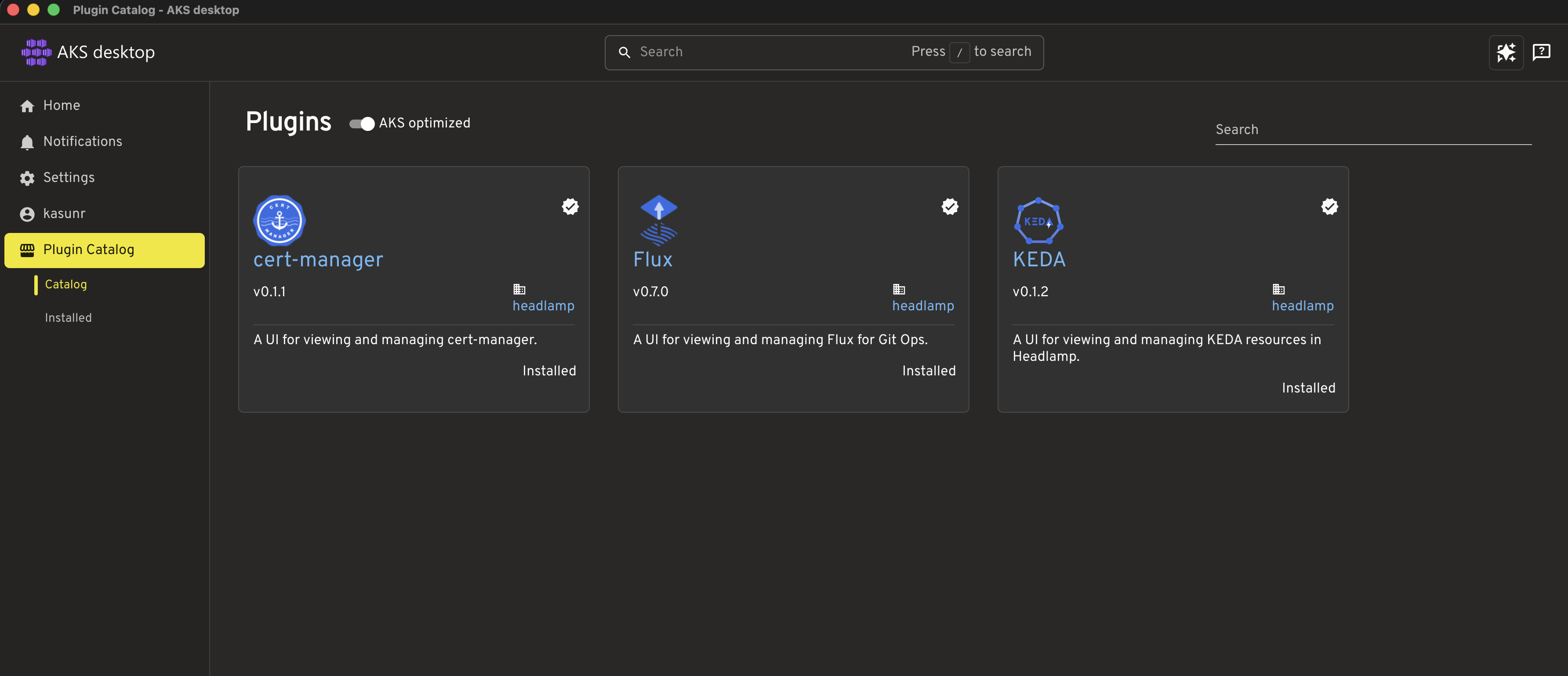
The screenshot shows three plugin entries with the optimized filter enabled:
- cert-manager — certificate and issuer status.
- Flux — GitOps reconciliation state, so you can see what the cluster thinks it should be running next to what it is actually running.
- KEDA — event-driven autoscaling triggers and scaler state.
What a plugin actually gives you
Installing a plugin adds its views to the left navigation. The Flux plugin, for example, adds an Overview dashboard and views for Kustomizations, HelmReleases, Sources, Image Automations, Notifications, Canaries, and the Flux runtime:
The status cards summarize Flux resource states, and the failing Kustomization is visible near the top of the page. This gives you an overview in the UI; the same state is also available through Flux CLI commands.
Insights is still in preview, so I am leaving it out of this walkthrough for now. I plan to investigate it further and cover it in a future post.
My take
In this walkthrough, I found the guided deployment and Project views useful for seeing application resources together. The Flux plugin also showed reconciliation status in the same UI. These features complement the Kubernetes CLI; they do not replace it.
The AI assistant is still preview. It may help gather and summarize context, but its output depends on the configured provider, available tools, and RBAC permissions. Check its evidence before acting on a recommendation.
Managed-namespace Projects require the documented Entra ID and Azure RBAC setup. Network policies also need a supported policy engine configured on the cluster; without one, policy objects may not be enforced. Confirm both before relying on those controls.
Cleanup
kubectl delete pod dns-breaker -n contoso-air-dev
az group delete --name $RG --yes --no-wait
To remove just the Project, use the trash can icon in the Project view. Selecting Also delete the namespaces removes the underlying managed namespace and everything in it.
Further Reading
- AKS desktop overview — capabilities and who it is for
- Quickstart: deploy and manage applications — the end-to-end walkthrough
- Projects in AKS desktop — namespace labelling and access model
- Configure a cluster for AKS desktop — the feature availability matrix for Standard clusters
- Troubleshoot with natural language — AI assistant providers and configuration
- Azure/aks-desktop — source, releases, and issue tracker
- AKS desktop v0.10.0 release notes — plugin catalog and AI assistant changes
- Headlamp — the upstream project AKS desktop is built on