
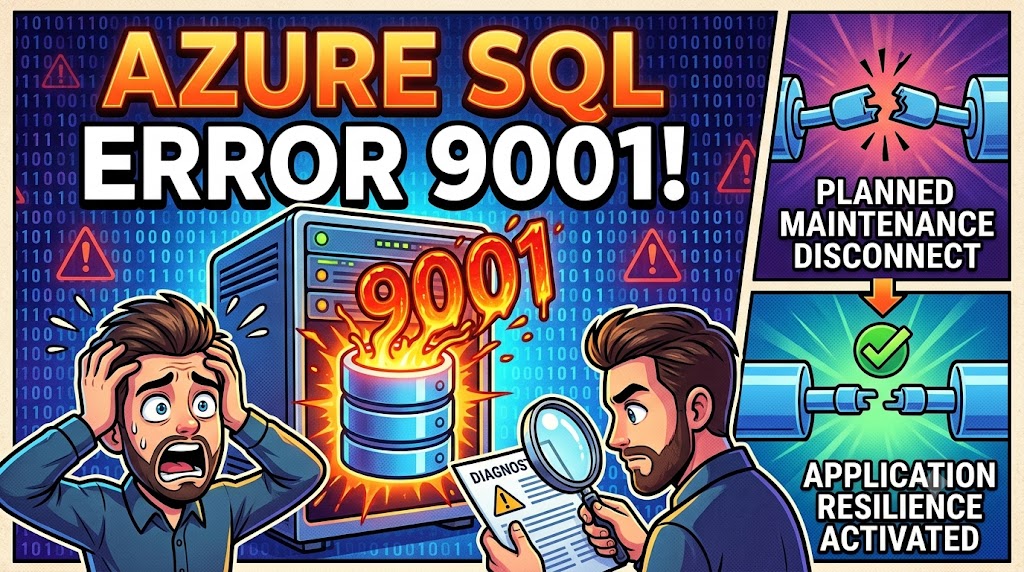

It started with a support ticket and a confusing log entry: applications were dropping database connections, and the Azure SQL diagnostic logs were full of this:
“The log for database ” is not available. Check the operating system error log for related error messages. Resolve any errors and restart the database.”
“The service has encountered an error processing your request. Please try again. Error code 9001.”
The message reads like something catastrophic happened to the database. In practice, it turned out to be completely normal — but only if you know what to look for.
What Is Error 9001?
SQL error 9001 means the transaction log for the database is temporarily unavailable. The transaction log is what SQL Server (and Azure SQL) uses to guarantee atomicity and durability. When that log can’t be accessed, the database cannot accept writes or safely serve reads, so the engine raises this error and drops active connections.
On a self-managed SQL Server instance, error 9001 is a red flag — it usually points to a disk failure, volume dismount, or I/O subsystem problem that needs urgent attention. On Azure SQL Database, the meaning is different.
Why It Happens on Azure SQL
Azure SQL is a managed, multi-tenant service. Behind the scenes, Microsoft continuously rolls out updates on a monthly schedule: OS patches, security fixes, SQL engine improvements, and third-party component updates. To apply these updates, the service fails over your database to an updated node. This is called a reconfiguration event.
Any of the reconfiguration triggers listed below can cause this. In busy Azure regions, the placement algorithm doesn’t always find an upgraded node immediately, so a database can experience multiple reconfigurations in quick succession before it finally lands on a new node.
The Root Cause of Error 9001 During Reconfiguration
Here is the precise moment that error 9001 appears in this flow:
- Azure decides to move the database to a new node (due to maintenance, load balancing, health recovery, or a scale operation).
- Toward the end of the reconfiguration, the transaction log is taken offline on the old node. This is intentional — it prevents any new writes from being committed against a node that is about to be abandoned.
- Active connections on the old node see the log disappear and receive error 9001.
- The new node comes online with the database fully recovered, and new connections succeed.
The window is normally a few seconds. Under heavy workload or when the region is busy, it can stretch longer, and in some cases multiple reconfigurations can occur in quick succession.
Reconfiguration Triggers
Reconfiguration events are normal and expected. They are triggered by:
- Database scale operations — changing the service tier or compute size.
- Maintenance window changes — updating the configured maintenance schedule for a server.
- Load balancing — Azure moving databases across nodes to optimise resource distribution.
- Planned deployments and region updates — the monthly patch cycle mentioned above.
- Health recovery — hardware or software failures that require automatic remediation.
None of these are a sign that something is wrong with your data. The data is intact; it is the connection that is interrupted.
Impact on Applications
Unless your application handles transient connectivity failures, a reconfiguration will look like a hard crash:
- Active transactions are rolled back — anything not committed before the log went offline is lost.
- Connection pools get poisoned — existing connections point to the old node and fail on the next command.
- Applications throw unhandled exceptions — if there’s no retry logic, the request simply fails and the error surfaces to the user.
This is the part that actually matters. The 9001 error itself is just the symptom; the real question is whether your application handles it gracefully.
Querying Diagnostic Logs
If you suspect error 9001 is affecting your workload, you can query the Azure SQL diagnostic logs using KQL (Kusto Query Language) in Log Analytics. First, ensure your Azure SQL Server has diagnostic logs enabled and routed to a Log Analytics workspace.
Once enabled, use this KQL query to find all instances of error 9001:
AzureDiagnostics
| where ResourceProvider == "MICROSOFT.SQL"
| where Category == "Errors"
| where Message contains "9001"
| project TimeGenerated, ResourceName, Message, ErrorNumber = extract(@"Error:\s*(\d+)", 1, Message)
| sort by TimeGenerated desc
To narrow down to a specific database and time range:
AzureDiagnostics
| where ResourceProvider == "MICROSOFT.SQL"
| where ResourceName == "your-server-name"
| where Category == "Errors"
| where Message contains "9001"
| where TimeGenerated > ago(7d)
| project TimeGenerated, Database = extract(@"'([^']*)'", 1, Message), Message
| summarize Count = count() by bin(TimeGenerated, 1h), Database
| sort by TimeGenerated desc
This gives you a timeline of how many 9001 errors occurred per hour per database, which helps correlate with application issues and identify patterns in reconfiguration timing.
Recommended Actions
1. Implement Retry Logic With Exponential Backoff
Because reconfigurations are transient, a simple retry is usually enough to recover. The key is to wait between attempts so you don’t hammer the service while it’s still in the middle of failover. Use an exponential backoff strategy — start with a short delay (e.g. 1–2 seconds) and double it on each successive attempt up to a reasonable cap.
When implementing retry logic, make sure you also handle error numbers 40613 (database unavailable) and 40197 (service processing error), which commonly appear alongside 9001 during the same reconfiguration window. For Java applications using the JDBC driver, the connectRetryCount and connectRetryInterval connection string properties provide built-in retry behaviour without needing an external library.
2. Use the Microsoft Retry Guidance Directly
Azure SQL’s own transient fault handling documentation lists the exact error codes that should be retried and provides sample retry patterns for multiple languages and ORMs (Entity Framework, Hibernate, ADO.NET, and more). Following this guidance means your application will handle not just 9001, but the full set of transient errors Azure SQL can surface.
3. Configure a Maintenance Window
If the timing of reconfigurations causes problems for your workload (for example, a batch job that runs nightly), you can configure a maintenance window on the server or elastic pool. This pins planned maintenance to a specific day and time range that you control, such as off-peak hours on a weekend.
Note that the maintenance window does not prevent all reconfigurations (health recovery events can still happen at any time), but it gives you predictability over the planned ones.
4. Review Connection Pool Settings
After a failover, stale connections in the pool will fail on first use. Make sure your connection pool is configured to:
- Validate connections on borrow (
testOnBorrow: truein JDBC, or the equivalent in your driver/ORM). - Expire idle connections after a reasonable timeout to avoid holding onto dead connections indefinitely.
- Set a reasonable connection timeout so threads don’t block forever waiting for a connection that will never come back on the old node.
What Error 9001 Does NOT Mean
It is worth being explicit about what this error does not indicate:
- It does not mean your database is corrupted.
- It does not mean you have lost data (committed transactions are safe; only in-flight transactions at the moment of failover are rolled back).
- It does not mean you need to file an urgent support ticket (unless the downtime is significantly longer than a few minutes).
- It does not mean the self-managed SQL Server advice applies — do not follow guidance about restarting the database service; you do not manage the Azure SQL infrastructure.
Key Takeaway
Error 9001 on Azure SQL is the expected signal for a reconfiguration event, not evidence of a broken database. The right response is entirely on the application side: build retry logic, handle transient errors as first-class citizens, and optionally align your maintenance window with your workload schedule.
If you see 9001 appearing repeatedly over several days without any associated maintenance notification, or if the downtime is lasting significantly longer than a few minutes per event, it is worth opening a support case to investigate whether something beyond routine planned maintenance is at play.